


How to resolve the “frequent access” error when logging into TikTok
When logging into TikTok, if the page displays “Too many attempts” or “Frequent access,” it means the platform’s risk-control system is protecting your account. This usually doesn’t indicate that your account has been banned; rather, the system has detected potential risks in your login environment or behavior.
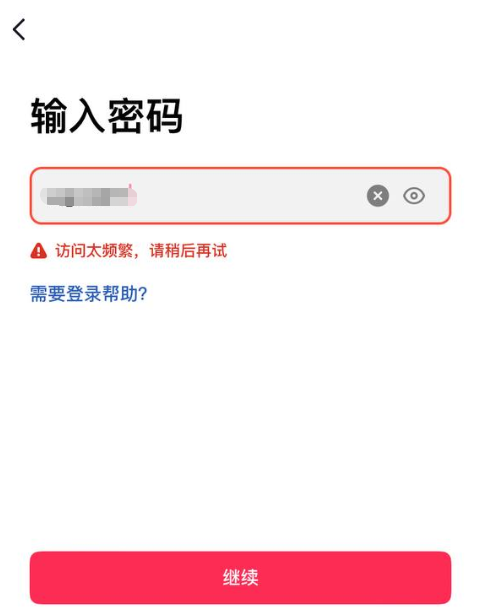
1. Check Recent Activity
First, users should review whether they’ve engaged in behaviors such as frequent logins, repeatedly requesting verification codes, continuously switching accounts, or logging in from multiple devices. These actions can easily be flagged by the system as suspicious activity, triggering restrictions. If you encounter this prompt, it’s best to immediately stop these activities and wait 30 minutes to 24 hours—after which the restriction will typically lift on its own. Avoid repeatedly trying during this waiting period, as doing so will only extend the restriction.
2. Inspect Your Network Environment
The network environment is another common cause of “Frequent Access” warnings. Using an unstable connection, frequently changing IP addresses, or logging in through proxies, VPNs, or similar tools may lead the system to suspect security risks associated with your account.
Avoid Public IPs: Shared “airport” or data center IPs are easily flagged.
Use a Clean IP: Consider using a dedicated, high‑quality network proxy (such as a static residential IP).
It’s recommended to switch to a stable Wi‑Fi or mobile data connection and maintain a consistent login environment.
3. Cleanup and Reset (Addressing Environmental Issues)
(1) Clear App Cache
In TikTok’s “Settings,” go to “Free Up Space” and clear the cache; alternatively, uninstall the app and reinstall it.
(2) Adjust Device Settings
Ensure your device’s time zone, language, and region match your account’s registration location (typically set to English), and disable location services.
(3) Switch Networks
Toggle between Wi‑Fi and mobile data. Avoid public or free proxies.
(4) Change Devices or Browsers
Try logging in from another phone, or use a desktop browser. If accessing the web version, you can also scan the QR code with the mobile app to log in.