


How to resolve the “Unable to log in” prompt on Twitter
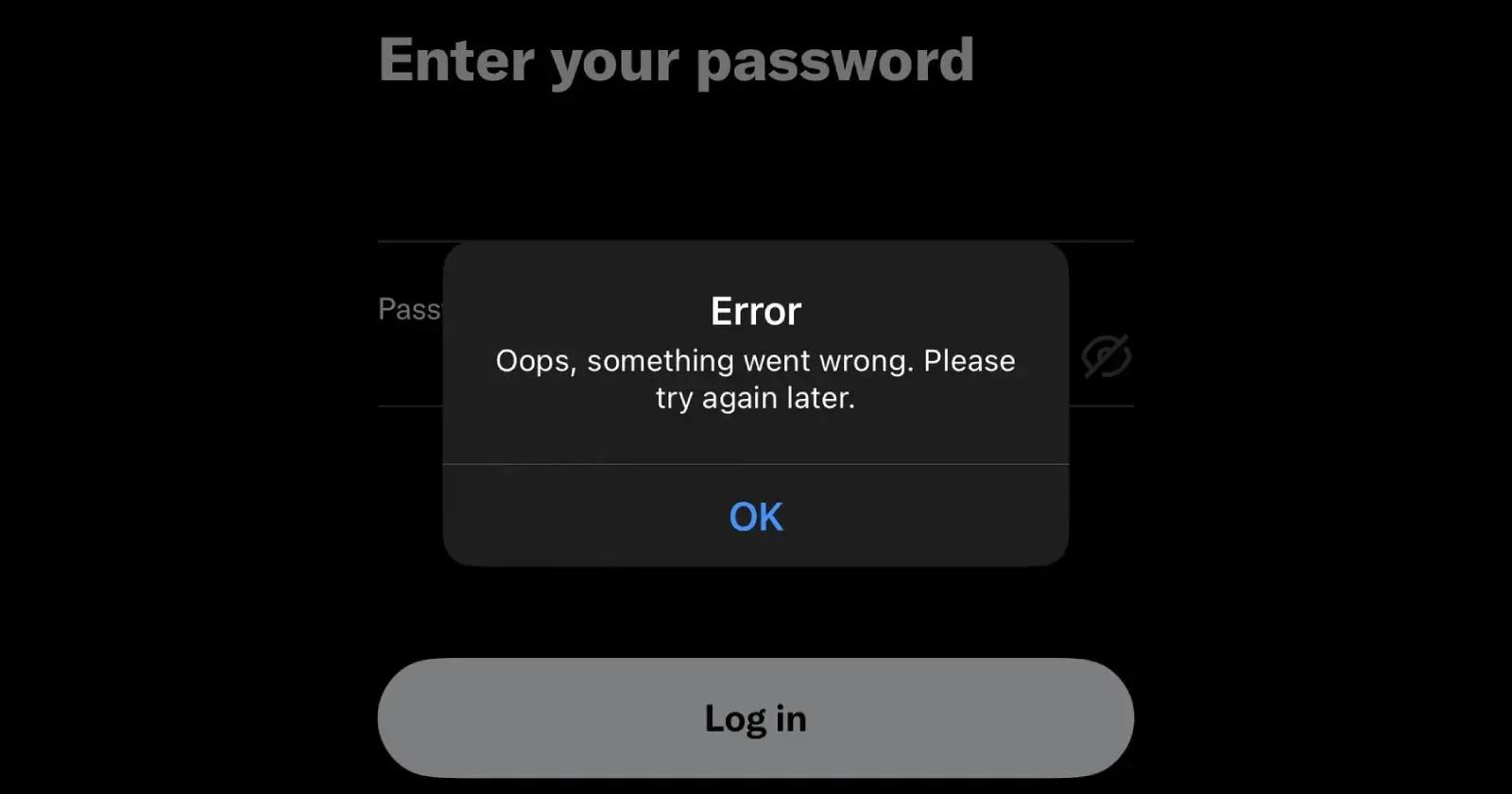
The “Unable to log in” error on Twitter (now rebranded as X) is usually caused by network issues, account status problems, or device/app-related factors. We recommend troubleshooting step by step, starting with the simplest checks:
1. Basic Environment and Network Troubleshooting
(1) Check Service Status
First, visit websites like Downdetector to confirm whether there’s a widespread outage on the platform. If so, you’ll need to wait for the official team to resolve it.
(2) Verify Account Credentials
Double-check your username and password, paying attention to case sensitivity, and ensure your username format is correct (including the “@” symbol). If you’ve forgotten your password, simply click “Forgot Password?” to reset it.
(3) Switch Networks and Devices
Try switching between Wi‑Fi and mobile data, or disable any VPNs or proxies before retrying. If possible, log in using a different device.
2. Browser-Specific Troubleshooting (Web Version)
(1) Use Incognito Mode
Log in through your browser’s private/incognito window. If you can successfully access your account, this indicates an issue related to cached data or browser extensions.
(2) Clear Cache and Cookies
Clear the cache and cookies for x.com and twitter.com.
(3) Disable Browser Extensions
Temporarily disable ad blockers, privacy/security extensions, and similar add-ons.
(4) Check Tracking Protection
Click the shield icon in the address bar and turn off “Enhanced Tracking Protection,” then try logging in again.
3. Mobile App-Specific Troubleshooting
(1) Update the App and System
Go to your official app store to update the app to the latest version, and make sure your phone’s operating system is also up to date.
(2) Clear App Cache
On Android, go to “Settings > Apps” to clear the cache; on iOS, uninstall and reinstall the app.
(3) Inspect Device Settings
Apps downloaded from unofficial sources, rooted/jailbroken devices, or phones lacking Google services (such as Huawei models) may be blocked.
(4) Correct Date and Time Settings
Ensure your phone has “Set Automatically” enabled for date and time.
4. Advanced Solutions
(1) “Web Accessible, App Not”
This typically occurs when the app fails its security attestation process. The key solution is ensuring both the web version and the app use the same high-quality network node, or binding your account to an email address and enabling Google Authenticator (2FA) on the web version.
(2) Encountering “LoginError.AttestationDenied”
Refer to the “App-Specific Troubleshooting” and “Advanced Solutions” above, focusing particularly on verifying that all Google services are fully installed and functioning.
(3) Passkey Login
If fingerprint or facial recognition login fails—possibly due to domain migration causing the passkey to expire—we recommend regenerating the passkey.