


How to resolve the “incorrect password” error when logging into Instagram on your phone?
When logging in with the Instagram app, if you see a “wrong password” message, there are usually several possible reasons.
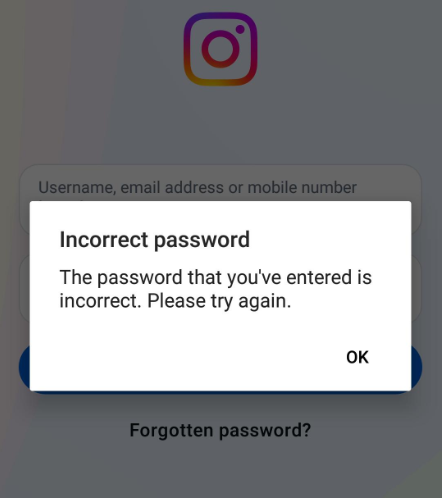
1. Double-check that you’ve entered your password correctly
(1) Verify each character carefully
On the login screen, tap the eye icon to the right of the password field and check every character: make sure you haven’t mixed up uppercase and lowercase letters, numbers, or symbols; also verify whether there are extra spaces at the beginning or end (common on mobile keyboards); disable auto-fill or password managers, then manually re-enter your password.
(2) Try a different login method
Don’t just enter your username—try using the email address or phone number associated with your account (include the country code, such as +86).
(3) Check your network and environment
Switch between WiFi and mobile data.
Turn off VPNs or proxies, then turn them back on (to avoid temporary IP restrictions).
Try a different browser or device (to rule out app-related issues).
2. The most effective solution: reset your password (a must-try)
(1) On the login screen, tap “Forgot password?” or “Get help logging in.”
(2) Enter your email, phone number, or username, and choose to reset via email (more reliable).
(3) Check your inbox (including spam), then click the reset link.
Open the link and set a completely new password (don’t reuse your old one).
(4) Log in using your new password.
3. App-level fixes (for mobile devices)
(1) For Android:
Go to Settings → Apps → Instagram → Storage → Clear cache (do not clear data). Restart your phone, open Instagram again, and update the app to the latest version from the app store.
(2) For iPhone:
Swipe up to close Instagram in the background, then reopen it. Long-press the Instagram icon, uninstall it, and reinstall it (this automatically clears the cache). Finally, update the app to the latest version from the App Store.
4. Other common causes
(1) Two-factor authentication (2FA) issues: if you don’t receive the verification code, use your backup code or switch to email/SMS verification.
(2) Account locked or restricted: if you see “Please try again later,” wait 15–30 minutes before retrying—avoid repeatedly refreshing the page.
(3) Account compromised: if resetting still doesn’t work, follow Instagram’s account recovery process.
5. Ultimate solution (if nothing else works)
(1) Open instagram.com in a browser and log in with your new password.
(2) Go to Settings → Login Activity and log out of all devices.
(3) Return to the Instagram app on your phone and log in with your new password.